
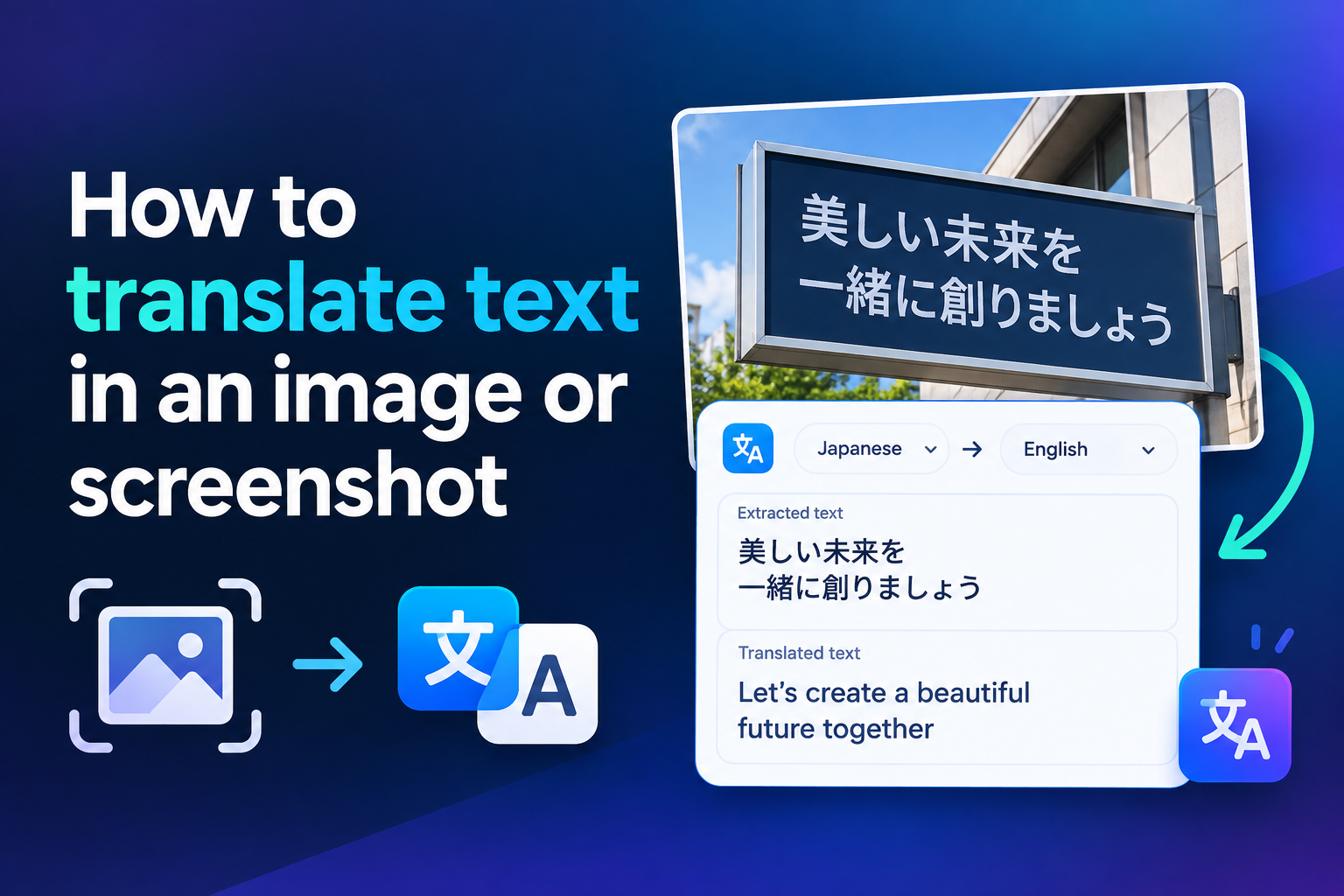
Translating text in an image or screenshot can turn an unreadable menu, message, sign, document, or product label into useful information within seconds. Instead of manually typing unfamiliar words into a translator, you can use optical character recognition, commonly called OCR, to detect the writing and machine translation to convert it into your preferred language. Many phones, computers, browsers, and translation applications now combine these technologies in one simple process. However, results can vary depending on image quality, font style, language choice, and context. Sensitive information also requires careful handling. This guide explains how image translation works, how to translate text accurately on different devices, which methods fit common situations, and how to fix recognition errors. You will also learn practical use cases, common mistakes, privacy considerations, expert tips, and answers to frequently asked questions.
What Image And Screenshot Translation Means
Image translation is a two-stage process. First, software identifies written characters inside a picture. It then translates the extracted text from the source language into a target language.
1. Optical Character Recognition
OCR examines shapes, spacing, and visual patterns to identify letters, numbers, and punctuation. Modern tools can recognize printed documents, screenshots, signs, labels, menus, and some handwriting. Clear text on a simple background usually produces the most reliable result.
2. Machine Translation
After extracting the words, the tool sends them to a translation system. That system evaluates vocabulary, grammar, and context before generating the target text. Good translation depends on accurate recognition, so an OCR mistake can change the meaning of the final output.
3. Automatic Language Detection
Many tools attempt to identify the source language automatically. This is convenient when you do not recognize the language, but detection may fail when an image contains only a few words or uses similar writing systems. Manual selection often improves reliability.
4. Live Camera Translation
Live translation displays translated text over the camera view. It is useful for signs, menus, maps, and instructions when travelling. Because the camera is constantly moving, bright lighting and a steady hand can make a noticeable difference.
5. Uploaded Image Translation
An uploaded-image tool analyzes an existing photograph or screenshot. This approach generally gives you more control because you can crop, rotate, sharpen, or enlarge the image before processing it. It is often better for documents and dense blocks of text.
6. Text Extraction Without Translation
Some applications can copy detected text without translating it immediately. This is valuable when you want to correct OCR errors, save the original wording, compare several translations, or paste the text into a specialist dictionary or trusted translation service.
Why Translating Text From Images Is Useful
Image translation removes the barrier between visible words and editable information. It saves time, supports accessibility, and helps people respond confidently when ordinary copying and pasting is impossible.
- Travel assistance: Translate restaurant menus, transport signs, hotel instructions, tickets, and public notices while visiting another country.
- Workplace efficiency: Extract and translate text from presentations, scanned forms, invoices, diagrams, or screenshots shared by international colleagues.
- Study support: Read quotations, textbook pages, research materials, and educational graphics published in another language.
- Shopping confidence: Interpret product names, ingredients, safety warnings, care instructions, specifications, and packaging details before making a decision.
- Communication help: Translate screenshots of messages, social posts, announcements, or customer-support conversations when the original text cannot be selected.
- Accessibility: Convert text inside an image into editable words that can be enlarged, copied, translated, or read aloud by compatible software.
How To Translate Text In An Image Or Screenshot
The exact buttons vary by device, but the basic workflow remains similar. These steps work with most camera translators, photo applications, OCR services, and desktop tools.
1. Choose A Suitable Translation Tool
Select a tool that supports image input, the source language, and your target language. For private or business material, review whether processing happens on the device or through an online service before uploading anything sensitive.
2. Capture Or Open The Image
Take a new photograph, open a saved picture, or locate the screenshot in your gallery. If possible, use the original file rather than an image that has been repeatedly compressed through messaging platforms.
3. Crop Unnecessary Content
Remove borders, icons, decorative graphics, and unrelated text. A focused crop gives OCR fewer elements to interpret and helps automatic language detection concentrate on the words that actually matter.
4. Select The Languages
Choose the original language if you know it, then select the language you want to read. Automatic detection is helpful, but manual selection can prevent mistakes when the sample is short or contains names and borrowed words.
5. Run Text Recognition
Activate the scan, lens, text-detection, or translation feature. Keep the phone steady if you are using a live camera. With an uploaded file, wait until the application highlights or extracts the recognized text.
6. Select The Relevant Words
Some tools translate everything, while others let you choose a sentence or region. Selecting only the required passage reduces clutter and can produce a more coherent translation than processing several unrelated blocks together.
7. Review The Extracted Text
Check names, numbers, dates, measurements, and punctuation before trusting the translation. If the recognized source text is wrong, correct it manually or scan a clearer version of the image.
8. Copy Or Save The Result
Copy the translated text only after reviewing it. Preserve the original image when the wording may need verification later, particularly for travel documents, technical instructions, receipts, contracts, or academic references.
Ways To Translate Images On Different Devices
The best method depends on where the image is stored and whether you need a quick interpretation or an editable translation.
1. Using A Phone Camera
Open a translation or visual-search application and choose its camera feature. Point the camera directly at the text, allow it to focus, and select the language pair. Live overlays are fast, although captured scans are often easier to review.
2. Using A Saved Phone Photo
Open the image in a compatible photo or translation application. Look for options such as detect text, scan, lens, or translate. Select the text region, confirm the detected language, and copy the translated result if required.
3. Using A Screenshot
Take a screenshot, open it in the gallery, and activate text recognition. Screenshots are usually easier to process than photographs because their characters are sharp, evenly lit, and aligned. Crop away notifications or interface elements that may confuse recognition.
4. Using A Desktop Computer
Upload the image to an OCR-enabled translation service or use built-in text recognition where available. A larger screen makes it easier to compare the source and translation, correct errors, and work with longer passages.
5. Using Copyable OCR Text
Extract the words first, proofread them, and then place the corrected text into a translator. This two-step method takes longer but offers greater control, especially when the image contains technical terms, unusual formatting, or small characters.
6. Using Offline Translation
Download supported language data before travelling or losing internet access. Offline recognition can be faster and more private, but language coverage and translation quality may be more limited than those of an online system.
Factors That Affect Translation Accuracy
Several visual and linguistic conditions determine whether image translation produces a clear result.
- Resolution: Large, sharp characters are easier to identify than pixelated or heavily compressed text.
- Lighting: Even light reduces shadows, glare, and washed-out areas that can hide parts of letters.
- Alignment: Straight, front-facing text is more reliable than writing photographed from a steep angle.
- Font style: Standard printed fonts perform better than decorative lettering, connected scripts, or unusual symbols.
- Language selection: Choosing the correct source language helps the system interpret characters and vocabulary accurately.
- Context: Full sentences are generally easier to translate meaningfully than isolated words or fragmented labels.
Best Practices For Accurate Image Translation
A few deliberate adjustments can improve both OCR recognition and the quality of the translated wording.
1. Use The Clearest Available Image
Start with the original screenshot or highest-resolution photograph. Avoid files enlarged from tiny previews because digital enlargement cannot restore missing character detail. If you control the camera, move closer instead of relying heavily on zoom.
2. Keep Text Straight And Level
Position the camera parallel to the page or sign. Perspective distortion changes letter shapes and line spacing, making recognition harder. Many scanning tools can correct mild distortion, but a straight original remains the best starting point.
3. Improve Contrast Carefully
Dark text on a light, plain background is ideal. Increase brightness or contrast only enough to separate letters from the background. Excessive editing may erase thin strokes, punctuation marks, accent symbols, or small characters.
4. Process One Language At A Time
If an image mixes several languages, crop and scan each region separately. Automatic detection can focus on the dominant language and misread smaller sections. Separate processing also makes the final translation easier to compare with its source.
5. Verify Important Details Manually
Treat dates, prices, dosage instructions, addresses, names, and legal wording with extra care. Compare the recognized text with the image character by character. For high-stakes content, seek confirmation from a qualified person rather than relying only on automation.
6. Preserve Meaning Instead Of Literal Wording
A translation that follows every word exactly may still sound unnatural or misleading. Read the complete sentence and consider its setting. Idioms, abbreviations, humour, and culturally specific expressions often require interpretation rather than direct substitution.
Common Image Translation Mistakes To Avoid
Image translation can appear convincing even when it is wrong. Knowing the most common failure points helps prevent avoidable misunderstandings.
1. Trusting The First Result Immediately
Do not assume polished grammar proves accuracy. Translation systems may produce fluent sentences from incorrectly recognized text. Always inspect the extracted source, especially when the content affects money, health, safety, travel, or official decisions.
2. Scanning A Blurry Photograph
Blur can turn one letter into another or cause words to disappear. Clean the camera lens, add light, hold the device steady, and take another photograph. A fresh image is usually more effective than repeatedly processing a poor one.
3. Ignoring The Source Language
Automatic detection can confuse related languages or misclassify a short phrase. If the translation seems unrelated to the image, select the source language manually and scan again before changing other settings.
4. Translating Too Much At Once
Pages containing columns, captions, headers, and tables may be read in the wrong order. Crop the image into logical sections and translate them separately. This preserves sentence order and keeps unrelated text from being combined.
5. Overlooking Names And Numbers
OCR systems may translate names unnecessarily or confuse similar characters, such as zero and the letter O. Check proper nouns, account references, prices, dates, units, and phone numbers against the original image before using them.
6. Uploading Confidential Material Carelessly
Screenshots can expose passwords, medical information, private conversations, financial data, or company records. Crop or cover irrelevant sensitive details and use an approved tool. When confidentiality matters, prefer secure on-device processing where possible.
Practical Image Translation Use Cases
The same basic technology can solve many everyday and professional problems. Each situation requires a slightly different level of care.
1. Reading Menus While Travelling
A camera translator can identify dishes, ingredients, and preparation methods. Confirm allergy information with restaurant staff because automated translations may misunderstand regional names or omit implied ingredients that are not fully explained on the menu.
2. Following Product Instructions
Translate setup steps, washing directions, storage guidance, or warning labels from imported products. Process each panel separately and double-check symbols, measurements, and safety statements before operating equipment or using chemical products.
3. Handling International Documents
OCR can provide a quick working translation of forms, invoices, letters, and receipts. It is useful for identifying the subject and required action, but it should not replace certified translation when an institution demands an official document.
4. Learning A New Language
Students can translate signs, workbook pages, and vocabulary cards while comparing the original wording with the result. Copying the recognized text also makes it easier to study sentence patterns, pronunciation, and unfamiliar characters.
5. Supporting Global Teams
Employees can interpret screenshots from software interfaces, presentations, dashboards, and customer messages. Important terminology should be checked against an approved company glossary so product names and specialist terms remain consistent.
6. Reading Social Media Content
Text embedded in a graphic, meme, video frame, or story cannot always be selected. A screenshot translator can extract it, but humour and cultural references may still need contextual explanation beyond a literal translation.
Advanced Tips For Better Translation Results
Once the basic process is familiar, these techniques can help with difficult images and more demanding material.
1. Compare More Than One Translation
When wording seems unclear, process the corrected source text with another translation system or language reference. Differences can reveal ambiguous phrases. Do not simply choose the most natural-sounding answer; compare each version with the original context.
2. Extract Text Before Editing It
Keep an untouched copy of the recognized source. Make corrections in a separate version so you can identify whether a problem came from OCR or translation. This distinction is particularly useful when troubleshooting longer documents.
3. Build A Terminology List
For repeated technical, academic, or business content, record preferred translations for product names, abbreviations, and specialist terms. A simple glossary improves consistency and helps you notice when automatic output uses an unsuitable alternative.
4. Split Dense Pages Into Regions
Divide tables, multiple columns, speech bubbles, or presentation slides into smaller crops. Translate them in the intended reading order. Smaller regions reduce layout confusion and make it easier to match every result with the correct visual element.
5. Use Context From Nearby Text
A single word can have several meanings. Include the surrounding sentence when possible, even if you only need one term. Nearby words help the translation system distinguish between a noun, verb, name, or technical expression.
6. Ask A Human To Review Critical Content
Professional review is appropriate for legal agreements, medical instructions, immigration documents, contracts, and public-facing materials. Image translation can provide a useful draft, but it cannot reliably account for every legal, cultural, or specialist nuance.
Choosing Between Live And Uploaded Image Translation
Live camera translation and uploaded-image translation serve different needs. Choosing the right approach can save time and improve accuracy.
Live translation is best for immediate orientation. It lets you point at a sign, menu, ticket machine, or package and see the approximate meaning without saving a photograph.
Uploaded translation is better when accuracy matters. You can crop the picture, correct its angle, enlarge small details, and review the extracted text before using the result.
Live overlays may shift as the camera moves or refocuses. This can make longer sentences difficult to read, particularly in dim environments or when the text appears on a curved surface.
Saved images provide a stable reference. They are useful when you need to compare wording, copy translated text, keep a record, or ask another person to verify the interpretation.
The practical choice is simple: use live translation for quick guidance and capture a clear image for anything that needs careful review, reuse, or confirmation.
Image Translation Privacy And Safety
A screenshot may reveal more than the sentence you intend to translate. Check the entire frame before allowing an application to process it.
Remove notification previews, profile pictures, account numbers, location details, and unrelated conversations. Cropping is safer than assuming the service will ignore material outside the main text.
Review the tool’s data-handling settings when working with personal or workplace information. Some services process images online, while others offer local recognition or temporary processing.
Never rely solely on machine translation for medical dosages, legal obligations, emergency warnings, or financial instructions. A small recognition error can create a serious misunderstanding.
Use image translation as an aid, then obtain appropriate human confirmation whenever an incorrect interpretation could cause harm, loss, or an irreversible decision.
Frequently Asked Questions
Can I Translate A Screenshot Without Typing The Text?
Yes. Open the screenshot in a photo, visual-search, OCR, or translation application that supports text detection. Select the relevant words and choose the translation option. Screenshots often produce accurate recognition because the characters are already sharp, flat, and evenly lit.
Can I Translate Text From An Image For Free?
Many phones and translation applications provide free camera, screenshot, or OCR features. Limits may apply to supported languages, file size, batch processing, offline access, or document length. Review privacy settings before uploading images containing personal, financial, medical, or workplace information.
Why Is The Text In My Image Not Being Detected?
The text may be too small, blurred, tilted, decorative, poorly lit, or similar in colour to its background. Crop the relevant area, straighten the image, improve contrast, and try a higher-resolution version. Selecting the source language manually may also help.
Can Image Translation Recognize Handwriting?
Some systems can recognize neat handwriting, but performance varies widely by language, writing style, spacing, and image quality. Connected letters, rushed notes, and unusual abbreviations create problems. For important handwritten content, verify every extracted word before translating it.
Is Image Translation Accurate Enough For Official Documents?
It can help you understand the general meaning of a document, but it may not satisfy official or legal requirements. Government agencies, courts, universities, and employers may require a certified translation. Names, dates, stamps, and technical wording also need careful human verification.
Can I Translate An Image Without Internet Access?
Yes, if your device or application supports offline OCR and you download the required language data in advance. Offline tools are convenient for travel and may offer better privacy, but their recognition features, language coverage, and translation quality can be more limited.
How Can I Copy Translated Text From A Picture?
Use an application that offers text selection after recognition. Highlight the required passage, choose translate, and then use its copy function. Proofread names, numbers, punctuation, and line order first, especially when copying content from tables, columns, or complex layouts.
Conclusion
To translate text in an image or screenshot effectively, begin with a clear, well-aligned picture, select the correct languages, and inspect the recognized source before accepting the translation. Cropping unnecessary details, processing complex layouts in smaller sections, and checking names and numbers can prevent many common errors.
Camera and screenshot translation tools are excellent for travel, study, shopping, work, and everyday communication. Their output should still be treated as assistance rather than unquestionable fact. Protect sensitive information and seek qualified human review whenever accuracy has legal, medical, financial, or safety consequences.